Introduction
MuseScore is a small application that allows you to write in musical notation. It is similar to what we could get with LilyPond-Denemo or with Sibelius, although, in my case, the more you get used to its WYSIWYG editor the more you realize Denemo will not provide the same easy way even after knowing how to use LilyPond text format.
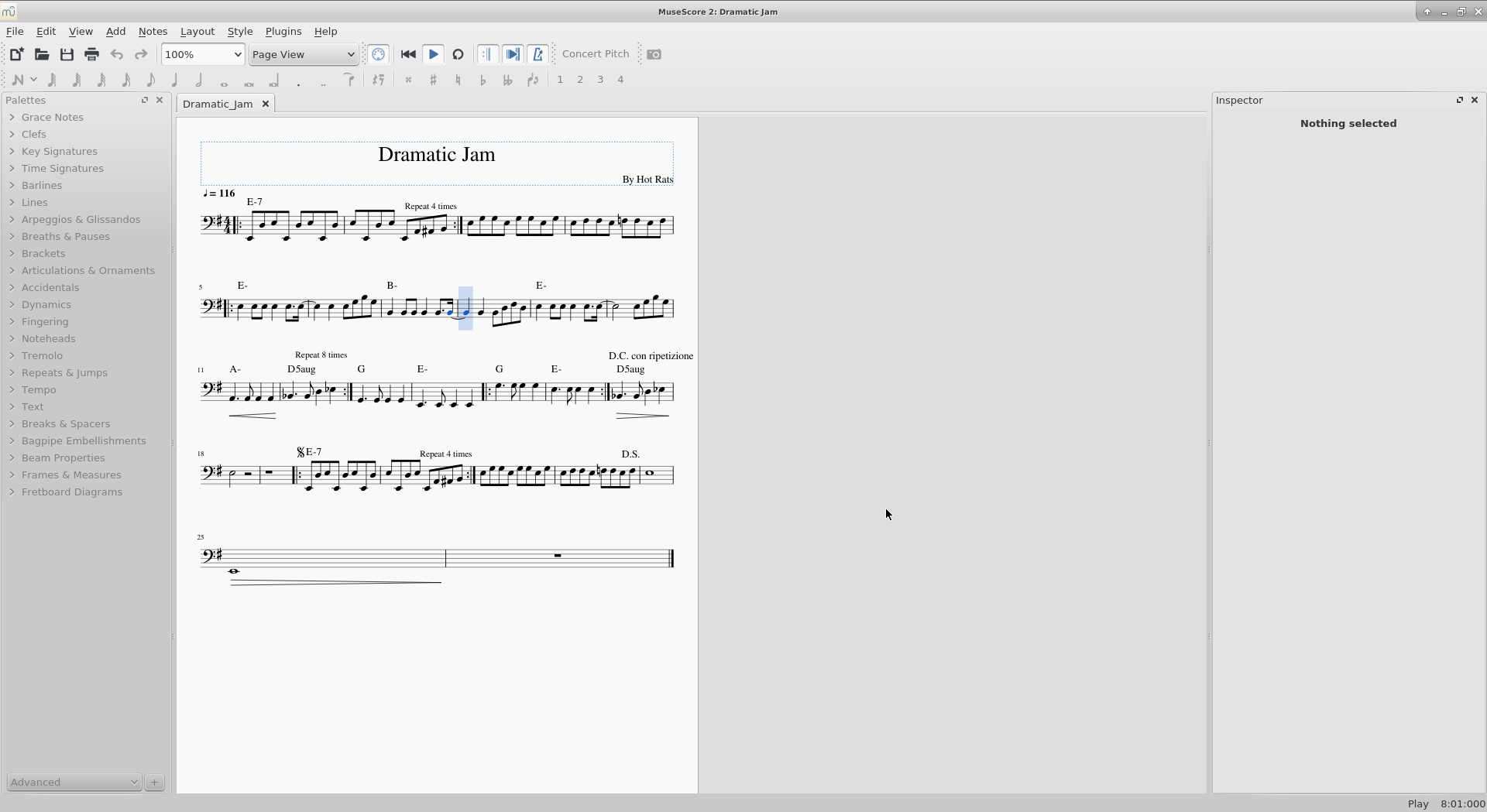
NOTE: I am not saying that MuseScore is a better application than LilyPond or Sibelius. In my experience, MuseScore seemed to be simpler, both in its use and in its configuration, whether compared to those two programs or to others like Rosegarden.
Installation
The installation of MuseScore in Ubuntu 18 is pretty simple. The application may be downloaded from the main Ubuntu repositories. Therefore, the process is reduced to an apt command. On the other hand, if you need to install a more updated version, there is a repository of stable versions since the 12.04 Ubuntu version:
sudo add-apt-repository ppa:mscore-ubuntu/mscore-stable
Once the list of repositories has been updated, proceed to update the package list and install MuseScore:
sudo apt-get update
sudo apt-get install musescore
For other operating systems, it is better to check the download page provided by MuseScore here.
First Steps
As soon as MuseScore is running, a modal window is displayed asking us what we want to do. Choosing My First Score, an empty notation is shown by default.
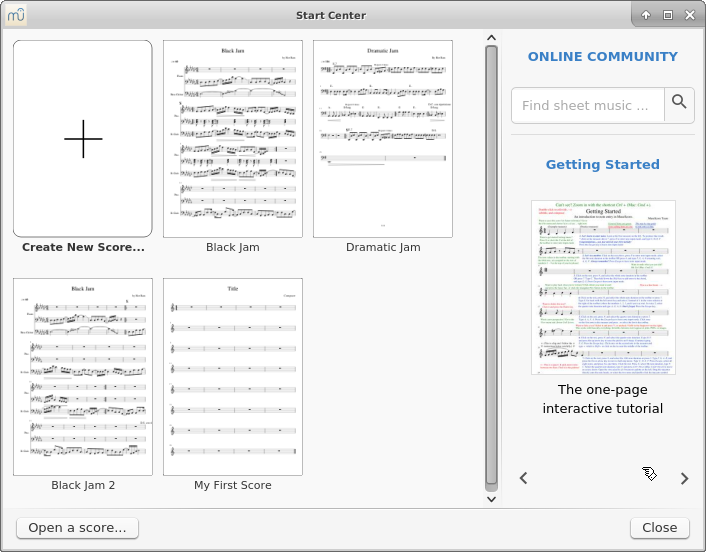
NOTE: Everything is customizable, so if we want, we may create a notation in another key or with a different tempo.
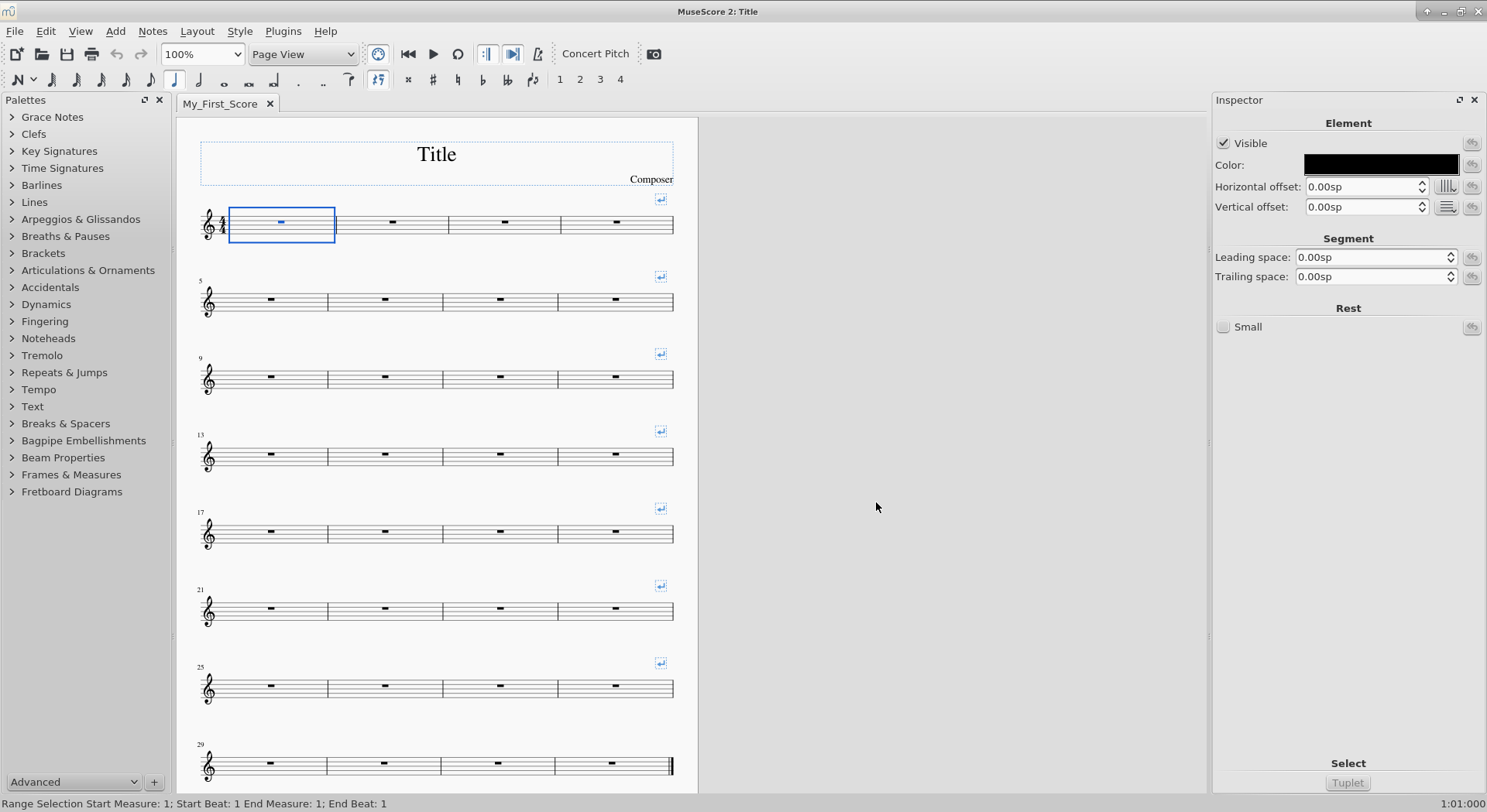
The main sheet is divided into at least 4 different areas:
- The upper area with the toolbar, which will allow us to define the duration of the notes, accidentals, ties, voices to which the notes will be assigned, activation or deactivation of the metronome and MIDI, or playback of the piece we are composing.
- The left lateral area that corresponds to a collection of palettes that will help us define tempos, tremolos, add chords and notations, da capos, etc.
- The central area where the score that we are composing will appear.
- The right side area that gives a customized view of the active elements at all times, with additional configuration settings such as the number of repetitions of a block and/or set of blocks.
Just two additional things:
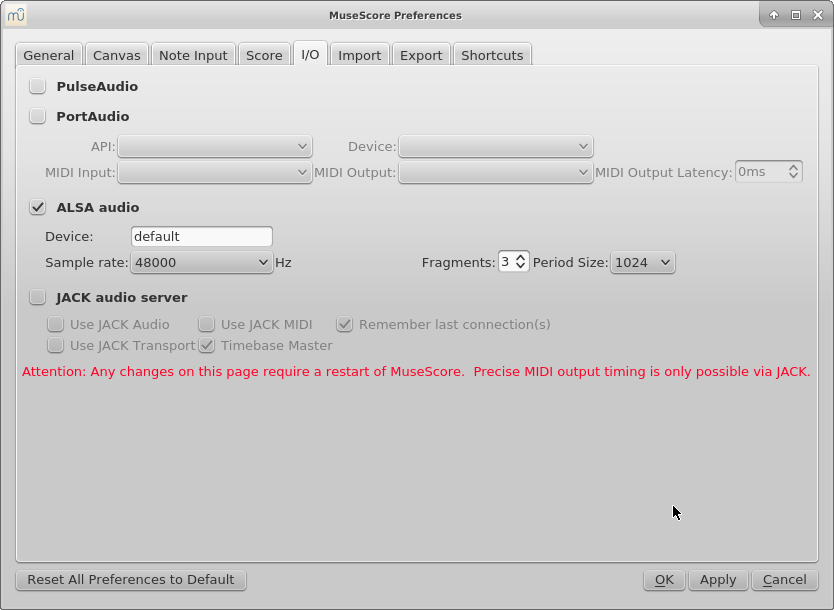
- The button to the right of the drop-down list that says Page View in the menu bar is the one that activates or disables MIDI. In my case, I have an Alesis Q49 MIDI master keyboard connected. Configuration is done within the preferences, under the I/O tab. You can use PulseAudio, ALSA directly, or JACK. In my case, ALSA is more than enough. Once the MIDI device is enabled, activating note editing on the sheet music (the icon representing the Note Input N key), any incoming MIDI signal will be transformed into the note being played.
- With the computer keyboard, we can also insert notes using letter notation: pressing the G key MuseScore will enter a G, B a B, etc.
From here, it depends on our intentions; the documentation provided by MuseScore is very extensive, with quick shortcuts to construct the score.
Finish the work
Once we have finished working with MuseScore, it allows us to store the file either in its own format or in other formats such as MusicXML, MP3, OGG, PDF, or SVG by selecting the export option.
Final considerations
Using MuseScore in a group to share sheet music among band members is a great alternative, since it allows you to obtain both the visual notation and sound playback of what you are composing. Likewise, the generated backing tracks, although they will not have the definitive sound of each real instrument, will allow for more individualized work for each member of the band.
NOTE: Just a reminder: please be careful with MuseScore versions. If you share MuseScore files with other band members or people in general, in our case we had minor setbacks with different versions of the program. It is advisable to always keep the same version updated across all musicians' computers.